4 Emergency Smartphone Tweaks to Extend Battery Life During a Power Outage
- Tags
- iPhone
- Smartphone
- Android
- Tech Tips
- Battery Life
- power outage
- emergency preparedness
When a power outage hits, your smartphone often becomes your most critical lifeline for staying updated on news, weather, and communicating with loved ones. However, under pressure, your device may drain battery faster than normal as it frantically searches for cellular signals in the absence of stable Wi-Fi. By taking proactive steps to optimize your settings, you can significantly prolong your device's availability when you need it most.
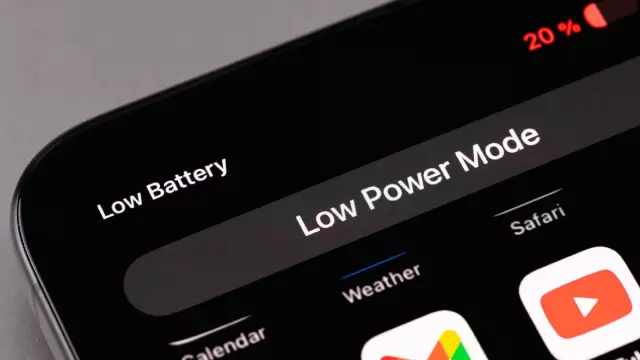
1. Engage Low Power Mode Immediately
As soon as the lights go out, switch your phone into its most restrictive power-saving state. Whether you use 'Low Power Mode' on an iPhone or 'Battery Saver' on Android, these modes perform essential heavy lifting by throttling the processor, pausing non-essential background app refreshing, and dimming non-vital visual effects. This simple toggle is your primary defense against rapid battery depletion.
2. Disable Wi-Fi and Bluetooth
When your local router loses power and cellular towers are overwhelmed, your phone will continuously work to hunt for signals, which is an extremely battery-intensive process. Go deep into your phone's Settings menu to disable Wi-Fi and Bluetooth entirely rather than just toggling them off via your Control Center or Quick Settings shade, as the latter often leaves the hardware scanning in the background. Keeping these radios off prevents unnecessary power drain.
3. Aggressively Manage Display Settings
The screen is the single largest consumer of battery power. To minimize its impact, manually lower your screen brightness to the lowest usable level and ensure you have disabled 'Auto-Brightness' or 'Adaptive Brightness,' which can fluctuate and consume more power than expected. Furthermore, enable 'Dark Mode' to save power on OLED screens and set your 'Auto-Lock' or 'Screen Timeout' duration to the absolute minimum—ideally 30 seconds or less—to ensure the screen shuts off as quickly as possible when not in use.
4. Activate Do Not Disturb
Every notification chime and vibration alert wakes your phone's processor and illuminates the screen, draining your battery for non-essential updates. By enabling 'Do Not Disturb' mode, you prevent these constant wake-ups. Ensure that you configure your settings to allow calls from emergency contacts or specific callers so that you remain reachable in a crisis while silencing trivial alerts. Being prepared is about managing the tools you have to ensure they last through the emergency.
Comments (0)
Sign in to join the conversation.Sign in
Loading comments...