The 4 Emergency Phone Tweaks That Keep Your Battery Alive in a Power Outage
- Tags
- Apple
- Android
- Tech Tips
- Smartphones
- Battery Life
- emergency preparedness
Why Power Outages Threaten Your Smartphone Battery
When a sudden grid failure plunges your home into darkness, your smartphone immediately shifts from a device of convenience to an absolute lifeline. Whether you need to monitor emergency weather alerts, check real-time news updates, or reach out to loved ones to confirm your safety, having a functional phone is non-negotiable. However, standard smartphone behavior—such as background synchronization, continuous notification pings, and aggressive network radio searches—can rapidly deplete your remaining battery reserves when you need them most.
According to Marcus Clarke, founder of The Prepared Household, panic is the enemy of preparedness during a blackout. 'Many people panic when the power fails, but a few simple changes to your phone settings can make a huge difference,' Clarke explains. 'These aren't just about saving battery; they're about ensuring you can reach emergency services or loved ones when it truly matters.'
To help you maximize your device's operational lifespan when every percentage point counts, experts recommend executing four crucial setting adjustments as soon as the power goes out.
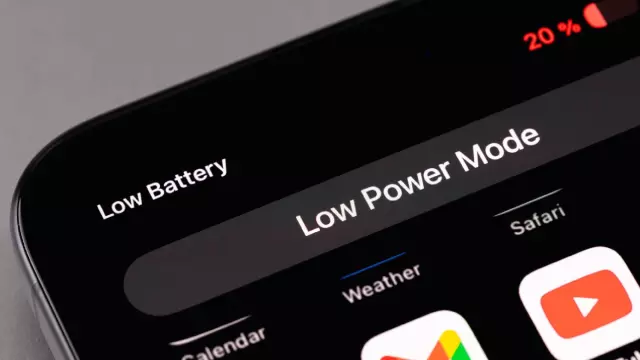
1. Enable Low Power Mode or Battery Saver Immediately
The single most effective step to extend battery life during an emergency is forcing your device into a low-energy operational state. Under normal conditions, your phone constantly runs background tasks, email polling, cloud backups, and visual effects that consume significant amounts of power.
'This is your first port of call,' notes Clarke. 'It's designed specifically for this purpose, cutting out many of the power-hungry processes you won't need in an emergency.'
- For iPhone Users: Navigate to Settings, select Battery, and toggle on Low Power Mode.
- For Android Users: Swipe down from the top of your screen to open the Quick Settings panel and tap Battery Saver (or Power Saving Mode).
Enabling this feature immediately throttles CPU performance, pauses background app refreshes, and suspends non-essential system animations, instantly putting your phone on a strict energy diet.
2. Disable Wi-Fi and Bluetooth to Stop Continuous Signal Scanning
During a widespread grid failure, local Wi-Fi routers and nearby cell towers frequently lose power or suffer from extreme network congestion. In response, your phone's internal antennas automatically boost transmission power to search for a connection, burning through battery life at an alarming rate.
'Unless you're connected to a portable Wi-Fi hotspot or using a Bluetooth device, these should be off,' Clarke advises. 'Your phone will spend less energy searching for signals that aren't there.'
To properly shut these features down, navigate to your phone's main Settings menu, select Wi-Fi, and flip the switch to Off. Repeat this process for Bluetooth. Avoid relying solely on the Control Center or Quick Settings shortcuts, as these UI toggles often only temporarily disconnect devices rather than powering down the underlying scanning hardware completely.
3. Lower Screen Brightness and Shorten Auto-Lock Duration
Display panels—whether OLED or LCD—consistently rank as the single largest consumers of battery power on any mobile device. Keeping your screen at maximum brightness while leaving long timeout windows active will drain your battery every time you check for updates.
'The brighter your screen and the longer it stays on, the faster your battery depletes,' Clarke warns. 'Make every second count by conserving screen time.'
To optimize your display settings:
- iPhone: Go to Display & Brightness, drag the brightness slider down to its minimum comfortable level, and switch on Dark Mode. Next, go to Accessibility > Display & Text Size, scroll to the bottom, and toggle off Auto-Brightness so ambient light sensors don't override your choice.
- Android: Open your Display settings, toggle off Adaptive Brightness, enable Dark Mode, and lower the brightness slider manually.
Additionally, adjust your screen timeout. On iOS, go to Display & Brightness > Auto-Lock and set it to 30 seconds. On Android, find Screen Timeout under the Display menu and drop it to 15 or 30 seconds to ensure the display shuts off immediately when not in active use.
4. Turn on Do Not Disturb to Block Non-Essential Notifications
Every incoming app ping, news flash, social media alert, and push notification triggers your screen to light up, wakes your processor from an idle state, and activates vibration motors. Silencing non-urgent updates prevents unnecessary hardware wake-ups while keeping cellular channels open for critical phone calls or emergency text messages.
'Prioritize what gets through,' Clarke emphasizes. 'You want to be contactable, but not bothered by every trivial update that can wait until the power is restored.'
On an iPhone, head to Settings > Focus > Do Not Disturb and switch it on. On Android, open your Quick Settings panel and tap Do Not Disturb. Be sure to customize your exceptions to allow incoming calls from emergency contacts or repeated callers so you never miss a vital communication.
Final Preparedness Thoughts
When an emergency strikes, your smartphone is arguably your most powerful tool for survival and communication. By taking proactive steps to tweak your settings, you ensure that your device stays functional long after the grid goes down. As Marcus Clarke concludes, 'Being prepared isn't just about having supplies; it's about knowing how to make the most of the tools you already have.'
Comments (0)
Sign in to join the conversation.Sign in
Loading comments...