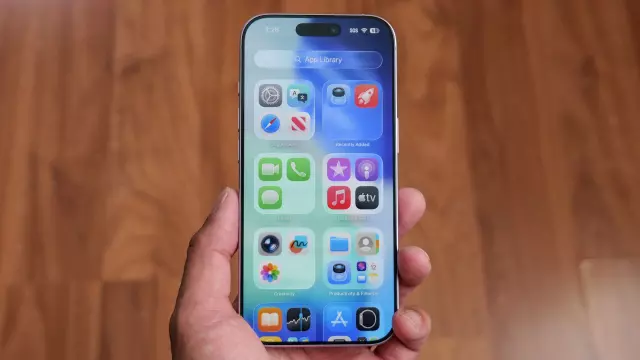
Why Disabling These iOS 27 Features Makes Your iPhone Feel New Again
- Tags
- Apple
- iOS 27
- iPhone
- Tech Tips
- Performance
If you recently updated your iPhone to iOS 27 and have noticed a frustrating dip in performance, you are not alone. Many users have reported sluggish interfaces, erratic touch responsiveness, and even bizarre glitches, such as emojis sending as large image files. While background system indexing can cause temporary lag after any major OS update, these symptoms often persist due to specific resource-heavy features that Apple introduced. By tweaking a few settings, you can reclaim your device's speed.
The Performance Impact of Liquid Glass
One of the most visually striking features in recent iOS iterations is 'Liquid Glass,' a design language that creates real-time translucent effects reflecting ambient light and your wallpaper. While visually pleasing, this constant rendering places a heavy load on your iPhone's GPU. While Apple provides an option to adjust intensity in the Appearance settings, it doesn't stop the background processing entirely. For maximum performance, navigate to Settings > Accessibility > Display & Text Size and toggle on 'Reduce Transparency' to alleviate the strain on your processor.
Why You Should Avoid 'Always-On' Low Power Mode
It is a common habit to keep Low Power Mode enabled, thinking it preserves battery throughout the day. However, doing so while actively using your phone is a recipe for lag. Low Power Mode achieves its longevity by throttling your CPU, which results in slower app launches and choppy scrolling. It is designed as a safety measure for when your device is idle and the battery is low, not as a permanent state. Disable it by going to Settings > Battery > Power Mode.
Handling Unresponsive Freezes
If your iPhone becomes completely unresponsive—a known issue often triggered by swiping down for the Control Center too quickly—don't panic. If the screen has frozen, you can force a hard reset to clear the system memory without losing your data. Quickly press and release the Volume Up button, then the Volume Down button, and finally hold the Power button until the device reboots and the Apple logo appears. This simple fix effectively clears cached errors that cause screen freezes.
Comments (0)
Sign in to join the conversation.Sign in
Loading comments...