Unlocking The True Potential: Optimizing The Witcher 3 Remastered Graphics on PC
- Tags
- PC Gaming
- RPG
- The Witcher 3
- Graphics Settings
- Gaming Optimization
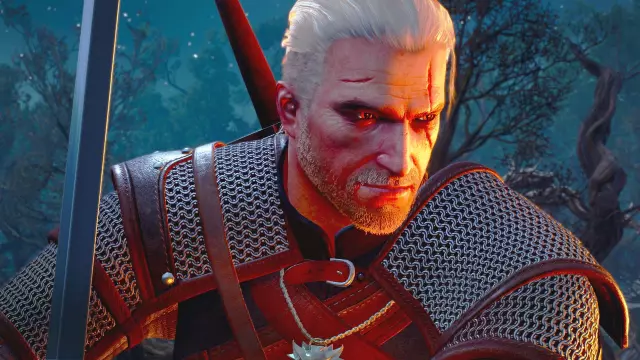
The long-awaited 'Next-Gen' update for The Witcher 3: Wild Hunt promised a visual overhaul, bringing the legendary RPG into the modern era with ray tracing, improved textures, and enhanced lighting. However, many PC players have reported a mixed experience, with some claiming the game looks surprisingly flat or less impressive than the original title. If you are struggling to find that visual 'wow' factor, you might be missing out on crucial hidden settings.
Why Your Graphics Might Look 'Off'
Often, when a major update rolls out, default settings are chosen for stability rather than visual fidelity. Players who jump into the game without digging through the advanced menus might be running the title on presets that fail to utilize the new assets properly.
Key Settings to Adjust for Maximum Fidelity
To experience the Continent as intended, follow these steps to tweak your PC settings:
- Screen Space Ambient Occlusion (SSAO): Don't just settle for 'On'. If your hardware allows, push this to its highest setting. It drastically improves the depth of shadows in crevices and corners.
- Ray Tracing Settings: Many users leave ray tracing off to maintain frame rates, but even turning on 'Ray Traced Reflections' or 'Global Illumination'—if your GPU supports it—can be the difference between a game that looks like a 2015 title and one that looks like a modern masterpiece.
- Anti-Aliasing and Upscaling: Ensure you are using DLSS, FSR, or XeSS correctly. If you're running at a lower resolution but using an aggressive upscaling mode, the image quality will suffer. Try native resolution with DLAA if your card can handle the overhead.
- Texture Quality: The update includes new high-definition texture mods integrated into the base game. Ensure your settings are set to 'Ultra+' to actually trigger these assets.
By taking a few minutes to manually calibrate these sliders, you can bypass the 'flat' look that some users have complained about and finally see the true beauty of CD Projekt Red's definitive edition.
Comments (0)
Sign in to join the conversation.Sign in
Loading comments...