How a Hidden iPhone Feature Saved the Day After My Son Hid the Apple TV Remote
- Tags
- Apple
- iPhone
- Smart Home
- Apple TV
- Tech Tips
The Great Apple TV Remote Hunt
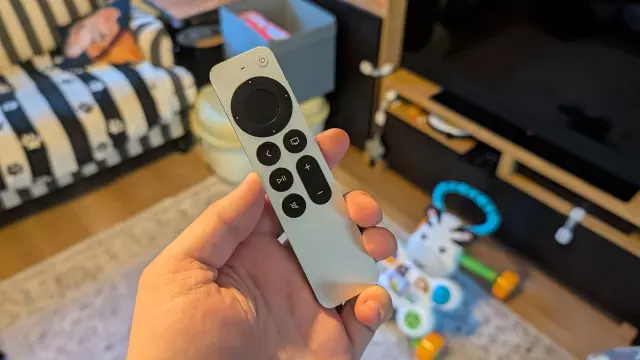
My 11-month-old son has developed an absolute obsession with my Apple TV 4K remote. While it used to be a simple case of him wanting to chew on the metallic casing—far from ideal—he has now graduated to pressing buttons and actively hiding it. This new hobby means the remote frequently vanishes into the domestic abyss, ending up in that mysterious dimension typically reserved for single socks in the dryer and missing toys.
While most traditional television remotes require a tedious, manual search of every cushion and crevice, the Apple TV remote has a clever workaround. Even though it lacks the out-of-the-box level of support you get with an AirTag, Apple has integrated a fantastic tracking feature directly into the iPhone.
How to Track Down Your Missing Apple TV Remote Using an iPhone
If your Siri Remote has slipped down the back of the couch or ended up in an impossible-to-reach spot, you don't necessarily have to resort to buying a pricey $59 replacement. By leveraging your iPhone, you can hunt it down using proximity tracking. Here is how you can use the built-in feature to locate your missing controller:
1. Open the Apple TV Remote App
The Apple TV Remote is not a standalone application sitting idly on your home screen app list. Instead, you can access it quickly via the search bar at the bottom of your home screen or through the recent apps menu in your pull-down Control Center. For newer iOS versions, you can even add a dedicated remote widget directly to your home screen for rapid access.
2. Select Your Specific Apple TV Device
At the top of the Remote interface, you will see a pill-shaped button displaying connected hardware. Tap it to view a list of Apple TV units associated with your Apple account. Once you select the correct device, look for the 'Find' button featuring a small remote icon on the right side of the screen and tap it.
3. Follow the Proximity Indicator
The Find interface will display a swirling circle of dots. As you walk around your living room, your iPhone will attempt to connect to the remote. When a connection is established, a blue circle appears in the center of your screen. The physical rule here is simple: the larger the blue circle grows, the closer you are to your missing hardware.
The Real-World Test: Couch Cushions and Unexpected Surprises
During my latest search, the tracking feature gave me a general area to focus on, proving invaluable when manual peering failed. My deep-dive into the sofa cushions didn't just yield the remote; it also uncovered an ancient, unopened can of Pepsi and enough crumbs to feed a small ecosystem. Eventually, the tracking interface pointed me toward the back edge of the couch, where my toddler had wedged the skinny remote completely out of sight beneath the frame.
How Apple Can Improve Remote Discoverability
While the iPhone tracking feature is a lifesaver, it does have limitations. The most glaring omission in the current Siri Remote is the lack of a built-in speaker. If an Apple TV remote slips down a tight gap, you still have to rely purely on visual clues rather than forcing the device to emit an audible chime, much like an AirTag or a misplaced iPhone can.
Adding Ultra Wideband (UWB) capabilities and a built-in sound emitter to future iterations of the Siri Remote would make the recovery process virtually foolproof. Until then, utilizing the hidden proximity meter on your iPhone is your best line of defense against tech-savvy toddlers.
Comments (0)
Sign in to join the conversation.Sign in
Loading comments...