How a Hidden iPhone Feature Saved the Day After My Son Hid the Apple TV Remote
- Tags
- Apple
- iPhone
- iOS
- Smart Home
- Apple TV
- Tech Tips
The Endless Search for a Missing Apple TV Remote
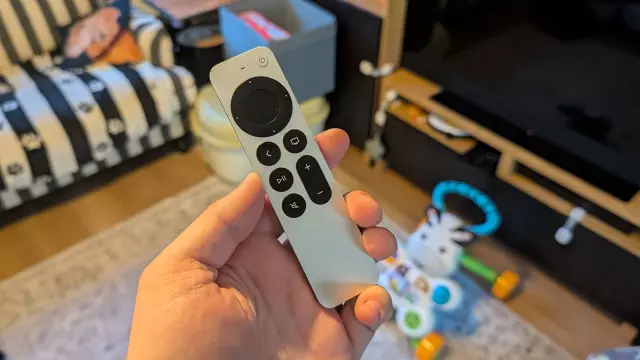
Every parent knows the sinking feeling of watching a toddler discover your expensive home entertainment gadgets. My 11-month-old son has developed an absolute obsession with the Apple TV 4K remote. What started as innocent chewing on its metallic body has evolved into a full-scale game of hide-and-seek, with the sleek, slender controller routinely vanishing into thin air.
After tearing my living room apart—scouring deep into the couch cushions only to unearth forgotten items like an unopened can of Pepsi and old LEGO bricks—I realized manual searching was getting me nowhere. Fortunately, before resorting to buying a $59 replacement, a clever built-in iPhone feature came to the rescue.
How to Track Down Your Missing Apple TV Remote Using an iPhone
While third-generation Siri remotes don't feature native Find My AirTag support, Apple has integrated a fantastic tracking tool directly into the iOS ecosystem. Here is the step-by-step method to locate your lost remote using your iPhone:
1. Open the Apple TV Remote App
The Apple TV Remote is built into iOS. You can quickly access it by using the search bar at the bottom of your home screen or through the recent apps section in your pull-down control center. Devices running newer iOS versions also allow you to pin the remote directly to your home screen for rapid access.
2. Select Your Target Device
At the top of the remote interface, tap the pill-shaped button to view all Apple TV units linked to your Apple account. Once you select the correct device, look for the 'Find' button featuring a small icon of an Apple TV remote on the right side of your screen.
3. Use Proximity Tracking to Close In
Tapping 'Find' launches an interface displaying a circle of swirling dots. Move around your living space until your iPhone establishes a connection. A blue circle will appear in the center of the screen, expanding as you get closer to the missing remote.
While this tool won't give you pinpoint GPS tracking, it successfully narrowed down my search area, ultimately revealing that the remote had slid completely under the back frame of the couch where a flashlight beam couldn't reach.
How Apple Can Improve Remote Discoverability
While the Remote app feature is a lifesaver, the experience could still be significantly improved. Unlike standard AirTags or competitor smart tags, the Siri remote lacks a built-in speaker. Adding an audible beep or alarm would eliminate the guesswork of hunting behind heavy furniture, a feature Apple should heavily consider for future Apple TV hardware iterations.
The Bottom Line
Losing your Apple TV remote to a curious toddler or the dark depths of the living room couch is frustrating, but you don't need to empty your wallet on expensive replacements. Next time your remote goes missing, bypass the frantic physical search and use the built-in tracking feature within your iPhone's Apple TV Remote app to locate it in minutes.
Comments (0)
Sign in to join the conversation.Sign in
Loading comments...