How a Hidden iPhone Feature Saved the Day When My Son Hid the Apple TV Remote
- Tags
- Apple
- iPhone
- Smart Home
- Apple TV
- Tech Tips
The Frustration of a Missing Apple TV Remote
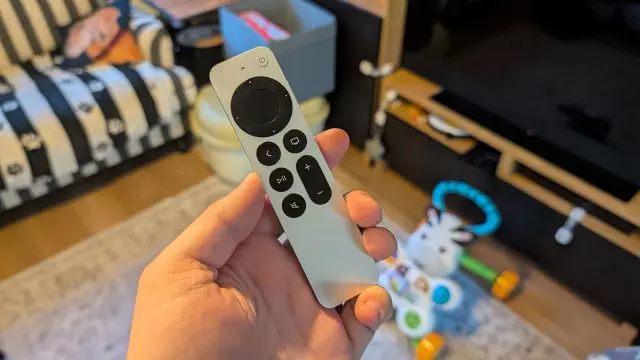
Every parent knows the struggle of toys, gadgets, and everyday items disappearing into the ether. My 11-month-old son has developed a distinct fascination with our Apple TV 4K remote. While it started out as a harmless teething object, it has quickly escalated into a high-stakes game of hide-and-seek. Unfortunately, hunting down a sleek, metallic remote hidden by a toddler is no easy feat.
Standard remotes often get lost in the deep chasms of the living room sofa, but the Apple TV remote presents a unique tracking challenge. While many users attach bulky third-party cases with AirTags, Apple has integrated a native solution directly into the iPhone ecosystem that doesn't require extra accessories.
How to Track Down Your Lost Apple TV Remote Using Your iPhone
When an Apple device goes missing, the default instinct is usually to open the Find My app. However, the third-generation Siri Remote does not feature standalone AirTag-level tracking support. Instead, Apple relies on a specialized tool embedded within the Apple TV Remote application on your iPhone.
Step 1: Open the Apple TV Remote App
The remote interface isn't always sitting as a standalone app on your home screen, but you can quickly access it by using the search bar at the bottom of your device or via the Control Center. For newer iOS versions, users can pin the remote widget directly to their home screen for instant access.
Step 2: Select Your Apple TV Device
At the top of the remote interface, look for the device selector pill button. Tap it to view a list of all Apple TV boxes connected to your Apple account. Once you select the correct device, locate the 'Find' button featuring a small remote icon adjacent to it.
Step 3: Connect and Trace the Signal
Activating the feature brings up an interface filled with swirling dots. As you move around the room, your iPhone attempts to connect to the remote. When a blue circle appears in the center, you are in range; the larger the circle grows, the closer you are to the missing hardware.
The Real-World Test: Couch Cushions and Unexpected Discoveries
When put to the test, the feature acts as a directional guide rather than an exact pinpoint. During my own living room excavation, the search proved to be an adventure. After tearing through the cushions—discovering forgotten toy pieces, heavy layers of dust, and even an unopened can of Pepsi from an unknown timeline—the tracking interface finally gave a solid reading.
It turned out the remote was shoved firmly underneath the back frame of the couch where flashlights couldn't easily reach. While it still required moving heavy furniture, the feature prevented me from buying a costly $59 replacement remote.
How Apple Can Improve Remote Discoverability in the Future
While the current integration is a lifesaver, there is plenty of room for improvement. The most glaring omission is a built-in speaker on the Siri Remote. Allowing users to trigger an audible chime—just like an AirTag or an iPhone—would entirely eliminate the need for trial-and-error crawling under furniture.
Adding Ultra-Wideband (UWB) precision tracking to future iterations of the Apple TV remote would also elevate the experience, transforming a frustrating household scavenger hunt into a seamless, modern convenience.
Comments (0)
Sign in to join the conversation.Sign in
Loading comments...