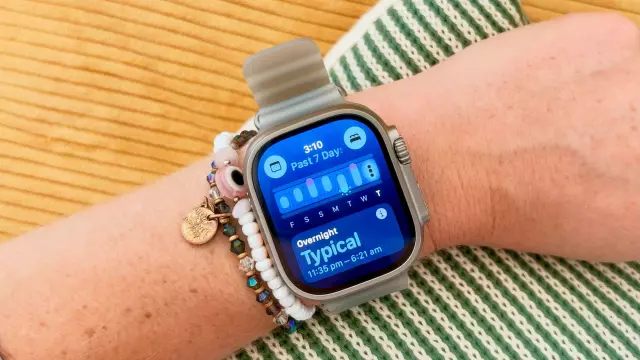
How My Apple Watch Vitals App Detected Illness Before Symptoms Appeared — And How to Optimize It
- Tags
- Apple Watch
- Health Tech
- Wellness
- Fitness
- Smartwatches
Introduction: When Your Smartwatch Knows Before You Do
Despite writing about fitness technology for a living, I am always amazed when a wearable device strapped to my wrist spots subtle physiological changes before I am even consciously aware of them. A few years ago, my Oura Ring famously tipped me off that I was pregnant weeks before a home test confirmed it. This week, the Apple Watch Vitals app worked its magic again, signaling that my toddler had passed along a fresh batch of germs before I felt the first rumblings of a head cold.
While this proactive health monitoring is undeniably impressive, many Apple Watch users fail to realize that a few simple tweaks can dramatically improve the accuracy of the Vitals app. These optimization tips apply across various models, including newer flagships like the Apple Watch Series 12 and Apple Watch Ultra 4, which introduce advanced readiness and daytime vitals tracking features.
Understanding the Apple Watch Vitals App
When you launch the Vitals app on your Apple Watch, you can easily scroll through essential health metrics using the Digital Crown. These core data points include heart rate, respiratory rate, wrist temperature, and blood oxygen levels. If you are wearing a newer model like the Apple Watch Series 12 or Apple Watch Ultra 4, you will also gain access to recovery heart rate variability (HRV).
Users can tap into each individual metric to dive deeper into their daily trends. If any metrics fall outside of your personal baseline, they immediately show up highlighted in purple, accompanied by contextual breakdowns explaining what might be causing the fluctuation. Earlier this week, my overnight vitals indicated that my resting heart rate and respiratory rate were slightly elevated—clear indicators that my body was enduring unusual physiological strain. Just a few days later, a full-blown head cold emerged.
Detecting illness before physical symptoms manifest offers a massive advantage. Not only does it help prevent the spread of germs to coworkers and family members, but it also allows you to jumpstart your recovery. By resting early, your immune system receives the necessary support to fight off viruses before they fully take hold. As someone currently managing strict training mileage ahead of my seventh marathon, catching this early meant I could immediately scale back, hydrate aggressively, and prioritize rest to protect my race day preparation.
Top Tips to Make Your Apple Watch Vitals App More Accurate
To ensure your wearable device is tracking your baseline health metrics with maximum precision, implementing a few key adjustments is essential. Here is how you can instantly boost the accuracy of your Apple Watch Vitals data:
1. Ensure Your Watch Fits Correctly
Proper fit is critical for accurate biometric tracking, especially if you have slender wrists and prefer a bulky device like the Apple Watch Ultra. The sensors must maintain close, consistent contact with your skin throughout the day and night.
Make sure your watch band is tight enough to prevent the device from sliding around while you sleep, but not so constrictive that it restricts blood circulation. Furthermore, position the watch slightly above your wrist bone toward your elbow, avoiding direct placement on the bony prominence itself.
2. Wear Your Watch Continuously Overnight
The Vitals app relies heavily on consistent data collection to establish your unique baseline. To spot genuine outliers accurately, you must commit to wearing your Apple Watch to bed every single night.
If you have recently purchased a new Apple Watch, keep in mind that the Vitals app requires approximately seven nights of continuous sleep data to successfully map out your typical ranges for respiratory rate, resting heart rate, and temperature.
3. Enable Automatic Sleep Tracking and Sleep Focus
While most users activate sleep tracking to wake up with detailed sleep scores, keeping your watch in Sleep Focus mode is mandatory for capturing accurate overnight vitals. If you frequently forget to turn this setting on manually, configure a scheduled Sleep Focus window within your iPhone's Health or Watch settings to automate the process.
4. Verify Required Privacy and System Settings
If your Vitals app appears empty or lacks comprehensive data, you may need to double-check your permission settings. Open the Watch app on your paired iPhone, navigate to Passcode, and ensure that Wrist Detection is toggled on.
Additionally, check your iPhone and Apple Watch privacy configurations to guarantee that both Heart Rate and Fitness Tracking permissions are fully enabled. Finally, keep your iOS and watchOS software updated to the latest versions to benefit from Apple's continuously refined health algorithms.
Comments (0)
Sign in to join the conversation.Sign in
Loading comments...