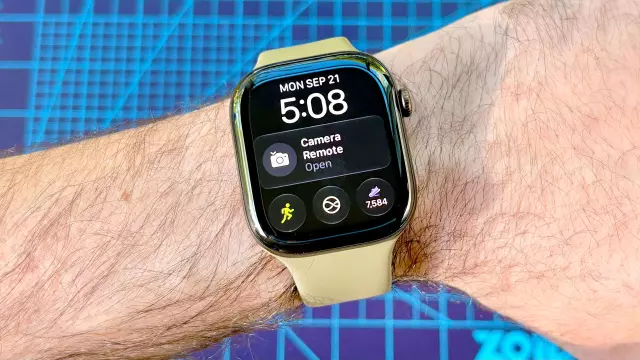
How to Add the New Dynamic Step Count Widget to Your Apple Watch
- Tags
- Apple Watch
- Apple Watch Ultra 4
- Fitness Tracking
- Apple Watch Series 12
- watchOS 27
- Siri Modular
Track Your Movement in Real-Time with Apple's Latest Update
For years, Apple Watch users have had to navigate through the Activity app or use third-party complications to see their exact daily step count. However, with the launch of the Apple Watch Series 12 and the Apple Watch Ultra 4, Apple has finally integrated a native, dynamic step count widget directly onto the watch face. This feature is powered by the advanced S11 processor, allowing for seamless, real-time updates of your daily movement without draining your battery.
Whether you are training for a marathon or simply trying to hit a 10,000-step goal, having this data available at a glance is a game-changer for fitness enthusiasts. In this guide, we will walk you through the most efficient way to enable this feature using the new Siri Modular watch face.
Step-by-Step Guide: Enabling the Daily Steps Widget
Adding the widget is a straightforward process managed through your paired iPhone. Follow these five simple steps to get started:
1. Access the Face Gallery
Launch the Watch app on your iPhone. From the main dashboard, navigate to the bottom of the screen and tap on 'Face Gallery'. This area allows you to browse all available watch faces and customize them before pushing them to your wrist.
2. Locate the Siri Modular Face
Once in the gallery, you have two options: you can either browse the 'New Watch Faces' category or use the search bar to find 'Siri Modular'. This specific face is designed to prioritize AI-driven suggestions and high-utility complications, making it the perfect host for the step count widget.
3. Choose Your Layout and Complications
Apple offers several Siri Modular styles. Select the one that fits your aesthetic preference. After selecting a style, scroll down to the 'Complications' section. Complications are the small data points that sit on the watch face. For maximum visibility, we recommend choosing the top-most complication slot.
4. Assign the Daily Steps Widget
Tap on the complication slot you wish to change. A list of available data sources will appear. Scroll to the 'Activity' section and select 'Daily Steps'. This will link the native step-tracking data to that specific position on your watch face.
5. Finalize and Sync
Review your choices on the customization screen. If you wish to add other utilities (like weather or heart rate) to the remaining slots, do so now. Once satisfied, tap the orange 'Add to Watch' button at the top of the page. Your Apple Watch will automatically sync and update to the new face.
Compatibility and Alternatives
It is important to note that the native Daily Steps widget is currently exclusive to the Apple Watch Series 12 and Apple Watch Ultra 4 due to the hardware requirements of the S11 chip.
What if I have an older Apple Watch?
If you own an older model (such as the Series 9 or 10), you can still achieve a similar result. While you won't have the S11-powered native widget, highly rated third-party applications like Pedometer++ offer similar complication functionality, allowing you to view your steps on various watch faces.
Beyond Step Counting: Exploring watchOS 27
The introduction of the step count widget is just one part of the broader watchOS 27 ecosystem. Users can also explore the new Siri AI voice assistant, which provides more intuitive health insights and proactive suggestions. Unlike the step widget, many watchOS 27 software features are compatible with a wider range of older Apple Watch models, ensuring that most users can still benefit from the latest AI enhancements.
Comments (0)
Sign in to join the conversation.Sign in
Loading comments...