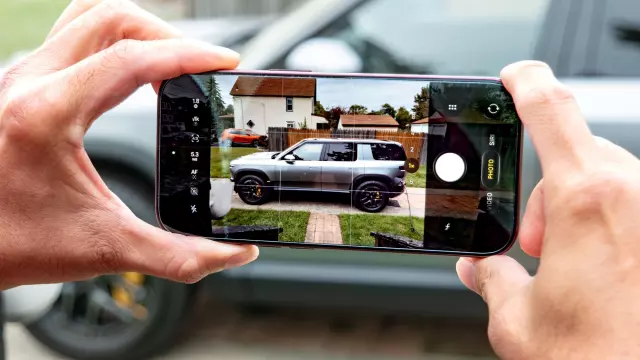
How to Customize Pro Controls Layout on an iPhone 18 Pro and 18 Pro Max
- Tags
- iPhone 18 Pro Max
- Apple
- Mobile Photography
- iPhone 18 Pro
- Tech How-To
- Camera Tips
Mastering Your iPhone 18 Pro Camera Experience
For the past couple of weeks, mobile tech enthusiasts and professional creators alike have been putting the iPhone 18 Pro and 18 Pro Max camera upgrades to the test. While the new variable aperture system has drawn plenty of attention for the natural depth of field it delivers, the bigger quality-of-life upgrade for many power users is the introduction of advanced Pro Controls.
Apple has historically been reluctant to give users full manual control, opting instead for automated point-and-shoot perfection. However, over recent generations, the company has gradually rolled out features that prove it is finally listening to photography enthusiasts. A recently discovered hidden trick takes this functionality to another level: the ability to fully customize the Pro Controls layout to match your exact shooting style.
Why Customizing Pro Controls Matters
Whether you want shutter speed pinned front and center or the manual focus slider positioned for precise, instantaneous fine-tuning, customizing the camera interface completely transforms the photography and videography experience. Instead of constantly digging through sub-menus or tapping multiple icons, personalization keeps your most critical tools within immediate reach.
Step-by-Step Guide: How to Customize Pro Controls
Customizing the Pro Controls layout on your iPhone 18 Pro or iPhone 18 Pro Max requires just a few simple taps within the native Camera application:
1. Access Pro Controls in the Camera App
Open the native Camera app on your device. Press and hold any of the control icons located on the side opposite the shutter button. On a brand-new iPhone 18 Pro, you will typically see default icons for Live Photos and the LED flash—simply long-press either one to trigger the customization overlay.
2. Select and Arrange Your Preferred Controls
An 'Add Photo Controls' overlay will appear, displaying icons for every available manual setting. You can configure anywhere from two to eight controls at a time. Once you have picked the features you need, drag and drop the icons into whatever order or layout works best for your personal workflow. Click Done when you are finished to save the configuration.
Seamless Transition to Video Recording
All of your selections will stay locked in the exact order you arranged them, making Pro Controls vastly more practical. This customization carries over seamlessly to video recording as well. While you will find familiar core adjustments like aperture, shutter speed, manual focus, and white balance, Apple also adds video-specific tools like Dual Capture, Action mode, and Adaptive time-lapse recording to enhance your mobile filmmaking setup.
Comments (0)
Sign in to join the conversation.Sign in
Loading comments...