I tested the Pinwheel, Ring Ring, Tin Can and Waffle phones for kids; here’s which came out on top
- Tags
- Tech Reviews
- Parental Controls
- kids phones
- landline for kids
- Pinwheel
- Ring Ring
- Tin Can
- Waffle
Introduction: Keeping Kids Connected Without Smartphones
If you want your child to be able to stay in touch with their friends, but they’re too young for a smartphone, then a kid-friendly phone could be the answer. These devices look like old-school phones, but use VoIP technology to make the calls. These phones are also managed by an app, so parents can control who their child talks to, and for how long and when they can make calls.
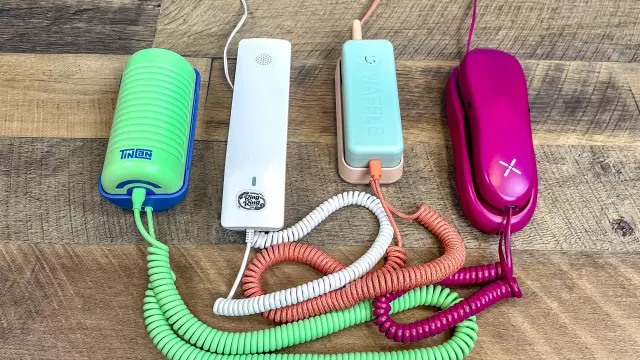
There are a number of companies that make these kinds of phones; to see which was the best, I called in four models to test them side by side: the Tin Can, Ring Ring, Pinwheel, and the Waffle, which was just announced and goes on sale at the end of October.
I compared things such as hardware costs and features, setup, parental controls, and subscription fees, and had my 7-year-old daughter test out all four to see which is the best landline phone for your kid. Read on to find out which was our favorite.
Design
If you’re going to make a phone that’s geared for kids, it’s got to look the part. Tin Can’s phones definitely look the most “fun,” with their multicolored designs. My daughter liked the color of the pink and orange Tin Can phone the best, and thought it was the most comfortable to hold, though it was the widest of the bunch, which may be an issue for kids with smaller hands.
I also liked that its cord was long — more than twice that of the other two, which meant that it was easier to hold the receiver without the base flying around.
After Tin Can, I would say that Waffle’s phone colors and designs are the most fun for a kid. Each model is multicolored — I tested one that was mint green and a pale pink — and above the keypad is a bright white LED display that shows the time and also the name of the person who’s calling.
I also like that the handset itself is narrow, which makes it easier for smaller hands to hold. There’s no wall mount, but Waffle’s phone is unique in that it has an internal battery, so you can carry it from room to room without being tethered to a wire.
Pinwheel comes in third here, as it offers phones in multiple colors, and its devices have a softer, rounder design. The Pinwheel’s buttons were easiest to press, but she had trouble putting the phone back on the base.
Ring Ring’s phones look the part of traditional phones from the 90s, which will definitely appeal to Boomers and Gen Xers, but the nostalgia won’t hit as hard for kids who have never seen a landline before. The company sent me the Modern design; it also has a Classic model that has the more rounded look of the phone that hung in your kitchen.
Both the Pinwheel and Ring Ring can be wall-mounted, but not the Tin Can nor the Waffle.
Device Cost and Options
Ring Ring gives you the greatest number of options when it comes to devices, however, they look like they would more appeal to 80s-nostalgic parents rather than kids. You can get a Wi-Fi-enabled handset (the Modern Kit, which comes in black or white) for $79, or the Nostalgic Kit, which requires an Ethernet connection to your router, but looks like a phone you might have had in your kitchen a few decades ago. This model costs $89, and comes in black, white, and pink.
If you already have an old-school phone, you can plug it into the Bridge Adapter ($59), which itself plugs into your router.
Included with the Ring Ring phone are a set of small business cards that you or your kid can fill out to hand to their friends, which is a nice little addition. The base of the phone also has a small card where you can write down the names and numbers of up to 10 people you can speed-dial.
Tin Can only offers four phones, but they’re the most colorful of the bunch. They’re also the second-most expensive, at $100 each. However, Tin Can is the only service that offers a discount if you purchase more than one device: If you buy two, they cost $95 each; if you buy three or more, the unit price decreases to $90. It’s a smart idea, as all of these services rely on not just you, but all your kid’s friends having one too.
Pinwheel falls in between Tin Can and Ring Ring, both in terms of pricing and phone options. The Pinwheel Spark costs $79 and comes in four colors; the Pinwheel Classic (which comes in pink, white, and black) costs $99. However, at the time of writing, they were discounted to $68 and $79, respectively.
Waffle has both the fewest options when it comes to phone colors (mint green and pink, black and neon green, and purple with yellow), and is the most expensive, at $119 each. There’s no discount if you purchase more than one phone.
Parental Controls and App
Since Pinwheel’s app manages both its landline and mobile phones, it’s a bit more complex (and a little more confusing) to use than the other apps. Just like with those apps, you can designate certain times for when your child is allowed to call other people. Pinwheel calls these “Modes,” and when used on its mobile phone, can also let you designate which apps they can use on their mobile phone.
Ring Ring’s app is simple and easy to use. You can add contacts manually or import them from your phone, and in the iOS app at least, you can invite other managers to oversee the account. The app lets you set quiet hours each day, and also lets you set a daily cap on the number of minutes a kid can use the phone, from 15 to 240 minutes.
Tin Can’s app is also very easy to use, but has fewer features than Ring Ring. You can set active and quiet hours, but you can’t set an overall time limit. You also can’t change the ring tone or volume from the app — you can only do that from the phone itself.
Waffle also offers customizable quiet times, which were easy to set up. When setting up contacts, you can also assign each a small avatar. A call log shows everyone who rang, and who left a message, and you can listen to voice messages from the app.
Setup
When you first set up the Pinwheel app, you’re prompted to add your name and phone number. During setup, you have to activate Airplane mode on your phone, turn on Wi-Fi, scan a QR code, and connect it to your Wi-Fi network.
Ring Ring needs to be initially plugged into your router to connect to your Wi-Fi network using a provided Ethernet cable. After connecting, it takes a minute or two to sync.
Tin Can setup is simple: plug it in, download the Tin Can app, scan a QR code, and connect the phone to your account and Wi-Fi network.
Waffle setup is also easy. Plug the phone in, download the app, connect via Bluetooth, and input your Wi-Fi password.
Subscription Pricing
All of the phones for all four of the companies work without signing up for a paid plan, but you’ll be limited to calling other phones on that service. For example, Tin Can phones can only call other Tin Can phones. Waffle is the one exception, allowing you to add one external contact and talk for up to 400 minutes per month on its free plan.
With every phone, signing up for a paid service gives you a phone number that allows you to dial any number. Pinwheel offers two paid plans ($6.99 and $9.99), Ring Ring is $8.95/month, Tin Can is $9.99/month (first month free), and Waffle is $9.99/month.
Call Quality and Features
To test each service, I placed a call from my iPhone to each phone located about 15 feet from the Wi-Fi router. All phones performed reasonably well.
Pinwheel featured a loud and harsh ring with decent voice clarity. Ring Ring announces the number of the person calling and features a flashing LED light indicator. Tin Can has a pleasant, loud ringer and very clear call quality. Waffle provides caller ID on its built-in display, though the audio occasionally sounded distant and watery during testing.
Bottom Line
Overall, Tin Can won this contest, earning a total score of 85 due to its fun design and easy setup, though it is pricier. Ring Ring came in second with 82 points, offering great parental controls and competitive hardware costs. Pinwheel and Waffle tied for third with 72 points each, offering unique trade-offs in design, app complexity, and features. Ultimately, the service you choose will likely depend on what your child's friends are already using.
Comments (0)
Sign in to join the conversation.Sign in
Loading comments...