Mastering Your iPhone Lock Screen: A Comprehensive Guide to iOS 27 Customization
This post has no video
A New Era of Personalization in iOS 27
For years, Apple maintained a strict grip on the aesthetic of the iPhone lock screen. While users could change wallpapers and add a few widgets, the overall layout followed a rigid set of rules. With the launch of iOS 27, Apple has shifted its philosophy, granting users unprecedented visual control over their devices. The update introduces a refined 'Liquid Glass' interface and a suite of powerful tools designed to eliminate visual clutter and prioritize personal taste.
Whether you are looking to create a minimalist sanctuary or a data-rich dashboard, these five new tools in iOS 27 are the first things you should tweak to transform your user experience.
1. Mastering the Liquid Glass Transparency Slider
The 'Liquid Glass' aesthetic—characterized by its frosted, semi-transparent overlays—is a centerpiece of iOS 27. Previously, users were forced to choose between basic 'Clear' or 'Tinted' presets. Apple has now replaced these binary toggles with a continuous opacity slider, allowing for granular control.
How to customize: Navigate to Settings > Appearance > Liquid Glass. By dragging the slider to the left, you can maximize transparency, allowing your wallpaper to shine through menus and widgets. Conversely, sliding to the right increases the depth of the tint, which is ideal for those who find white text difficult to read against busy backgrounds. The real-time preview allows you to find the perfect equilibrium between style and legibility.
2. Reclaiming Screen Real Estate: Clock Customization
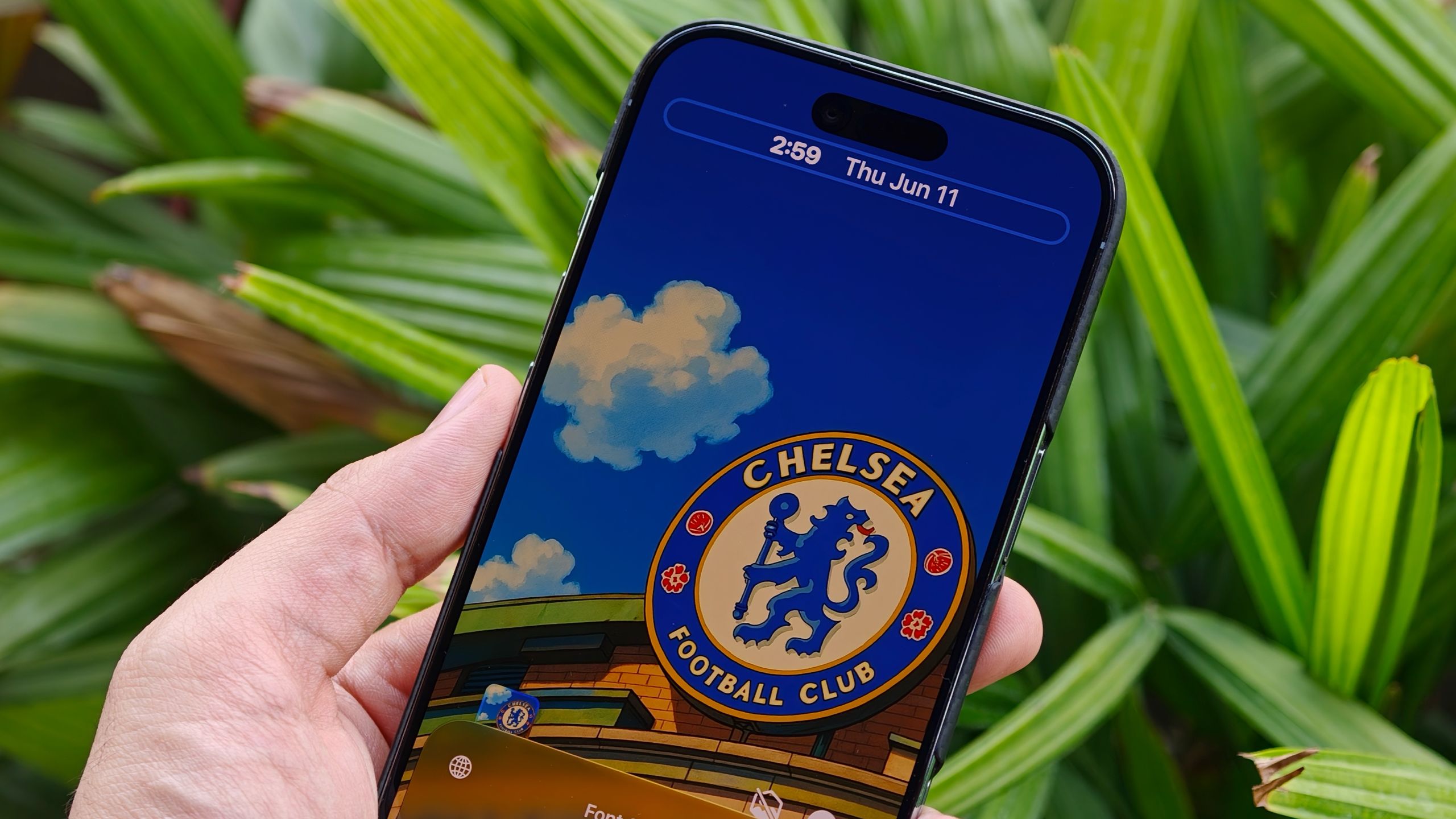
The oversized digital clock has long been a point of contention for users whose favorite wallpaper subjects—be it a pet, a child, or a landscape—are obscured by the time display. iOS 27 finally addresses this by allowing users to resize and relocate the clock.
How to customize: Long-press on your lock screen, select Customize, and tap the clock frame. You can now significantly reduce the font size or move the clock entirely into the top widget row. This shift ensures that your visual focal points remain unobstructed while keeping the time accessible.
3. AI-Powered Wallpapers with 'Extend'
One of the most frustrating aspects of choosing a wallpaper is the 'cropping struggle,' where a beautiful photo doesn't quite fit the iPhone's aspect ratio, resulting in awkward black bars or cut-off subjects. iOS 27 leverages Apple Intelligence to solve this via the Extend tool.
How to customize: Go to Settings > Wallpaper > Add New Wallpaper. Once you've selected your image, tap the three dots in the bottom corner and select Extend Wallpaper. The AI analyzes the existing image and generates matching scenery, sky, or textures to seamlessly fill the screen. It can even automatically level out tilted horizons for a professional finish.
4. Managing Media Clutter: The 'Now Playing' Dismissal
In previous versions of iOS, starting a podcast or a song meant the 'Now Playing' widget would permanently occupy a large portion of the lock screen until the audio stopped. iOS 27 introduces a much-needed 'silent dismissal' feature.
How to use: When the media controller appears, simply swipe left across the playback controls. The widget will vanish, and the status indicator will clear from the Dynamic Island, leaving you with a clean view of your wallpaper. Crucially, your audio continues to play uninterrupted in the background.
5. Infinite Creativity with Image Playground
When your camera roll doesn't have the right vibe, you can now build a wallpaper from scratch using generative AI. The Image Playground integration allows for the creation of high-resolution, custom backgrounds tailored to your exact specifications.
How to customize: Within the wallpaper customization menu, select Image Playground. Enter a descriptive prompt of the scene you imagine and choose a visual style—ranging from 3D Animation and Illustration to classic Sketch. Once generated, you can apply color filters to ensure the AI art matches the overall theme of your device.
Conclusion
iOS 27 represents a significant turning point in Apple's approach to user interface design. By combining generative AI with granular manual controls, Apple has transformed the lock screen from a static gateway into a dynamic, personal expression of the user. By utilizing the Liquid Glass slider, AI Extension, and Image Playground, you can ensure your iPhone looks and feels unique every time you wake the screen.